

Creating a Shape
Shape tools are available from the Create Tools menu.1
Open the Create Tools menu and select a shape tool.
2
Click and drag inside an artboard to draw the shape.Hold
Shift while dragging to constrain the shape’s proportions.See Freeze and Origin to learn how to change the center point of a shape.
Shape Properties
You can update a shape’s properties in the inspector. Available properties depend on the selected shape type.- Size: The width and height of the shape.
- Origin: The origin point of the shape.
- Corner: The corner radius of rectangles.
- Radius: The radius of polygons and stars.
- Points: The number of points on polygons and stars.
- Angle: The angle between the outer and inner points of a star.
Corner
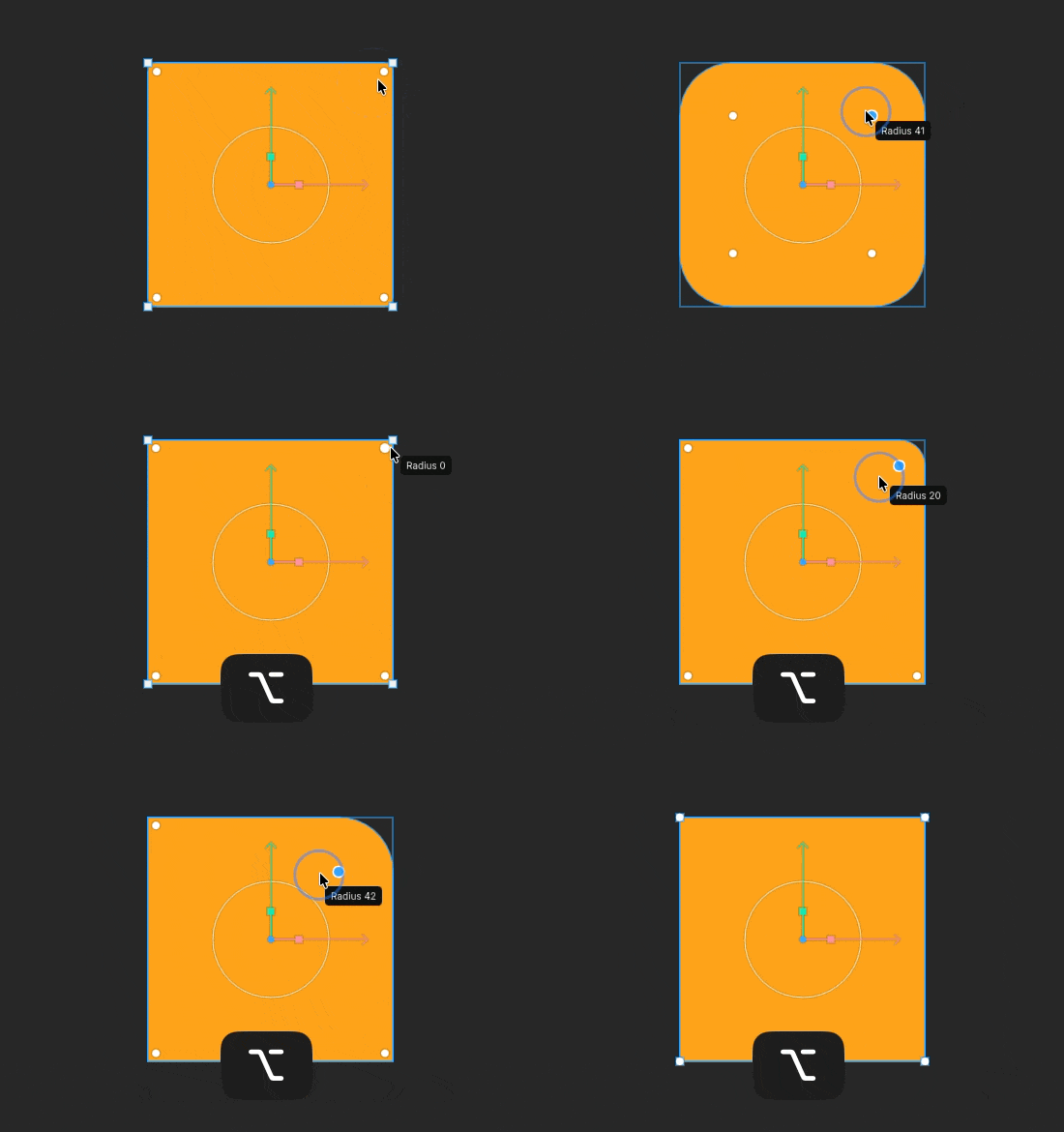
Adjust the corner radius by dragging the circular handles on each corner of the rectangle. HoldAlt (Windows) or Option (macOS) while dragging to adjust a single corner independently.
Radius
Drag the radius handle to adjust the radius of all points on the shape at once.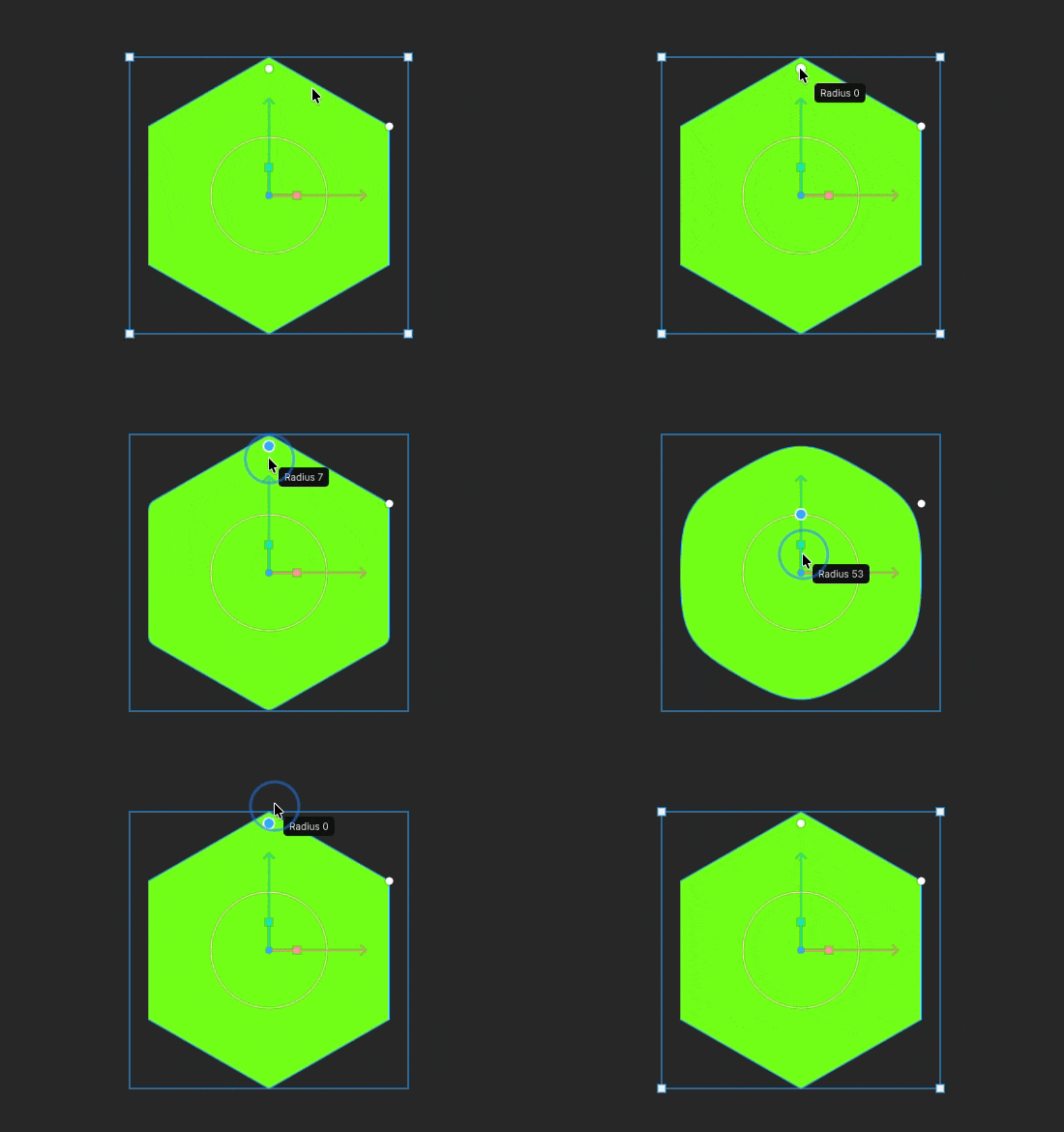
Points
Control the number of points by dragging the points handle up or down.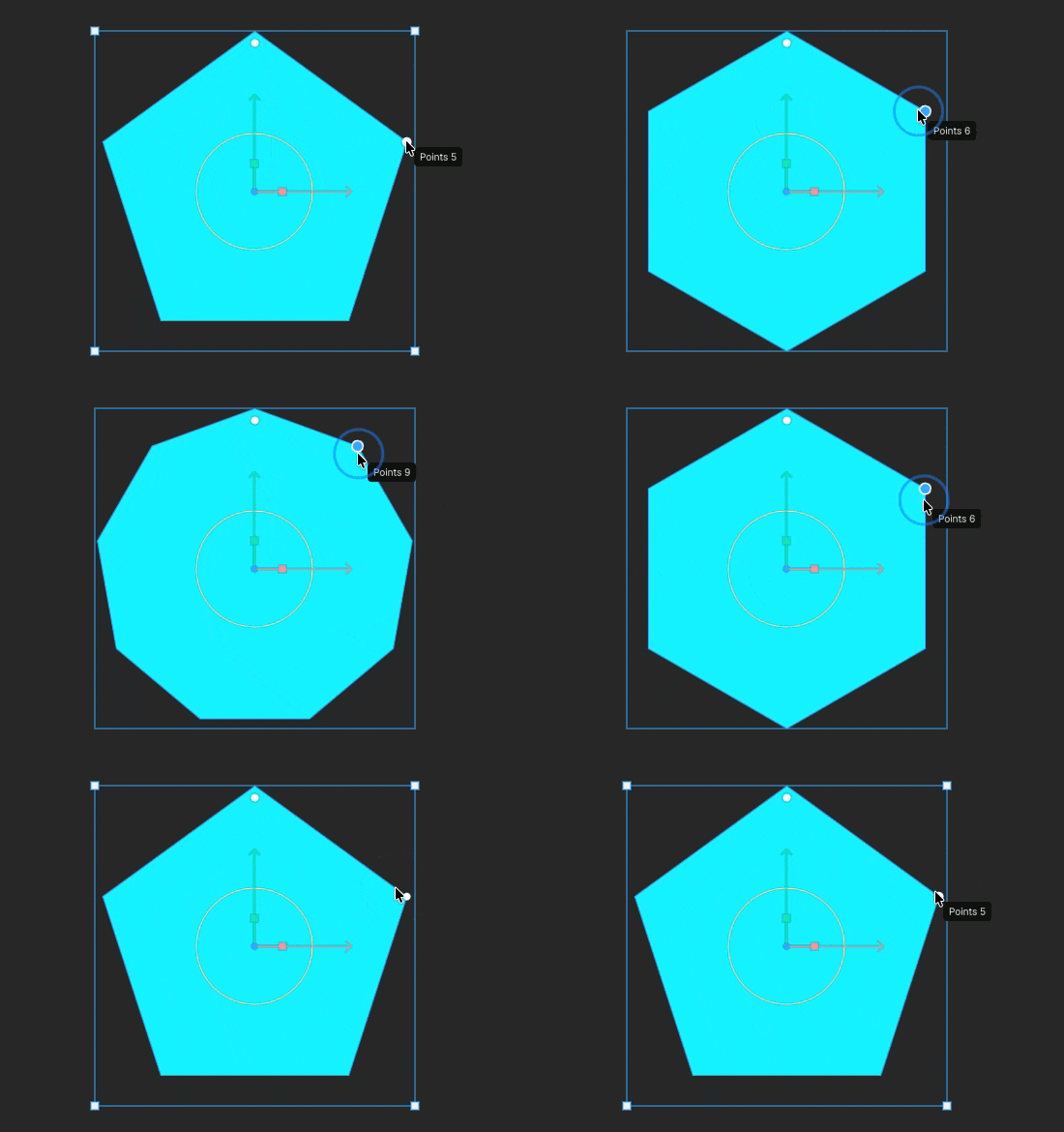
Angle
Drag the handle on the inner point up or down to adjust the angle on the inner and outer points of a star.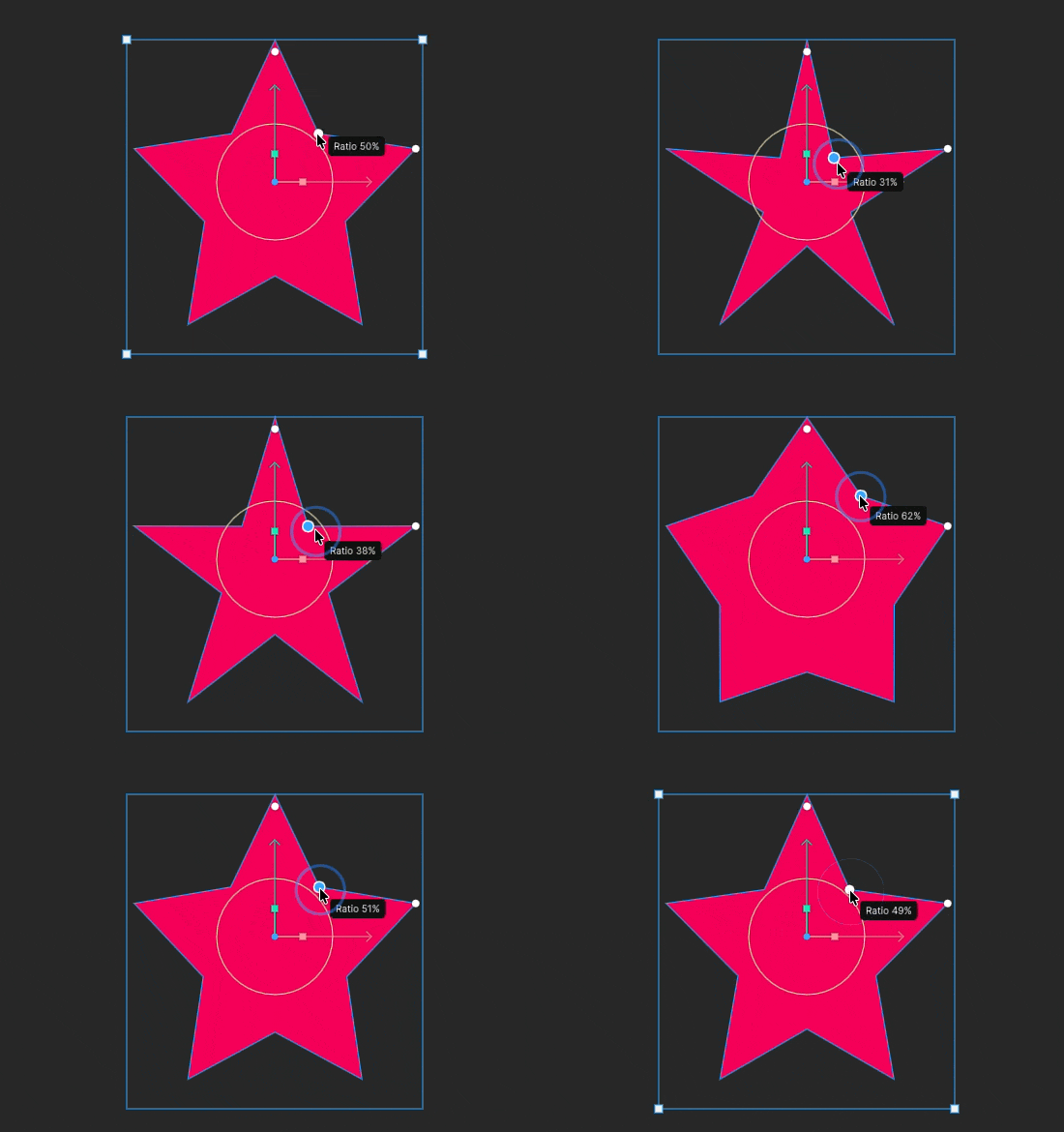
Converting a Shape to a Custom Path
PressEnter to convert the selected shape to a path. After conversion, you can edit each vertex directly.
Converting a shape to a path removes its procedural properties, such as width, height, corner radius, and number of points. Any animations applied to those properties are also removed.
To edit a path, see Edit Vertices.